

Vaiz MCP
Bring your Vaiz workspace into your AI tools
Connect tasks, projects, documents, and team context to the assistant you already use. Choose your client and follow the setup guide.
Choose your client
Connect Vaiz to Cursor
Use Vaiz tasks, projects, and documents as context while you plan and write code.
Step 1: Open MCP settings
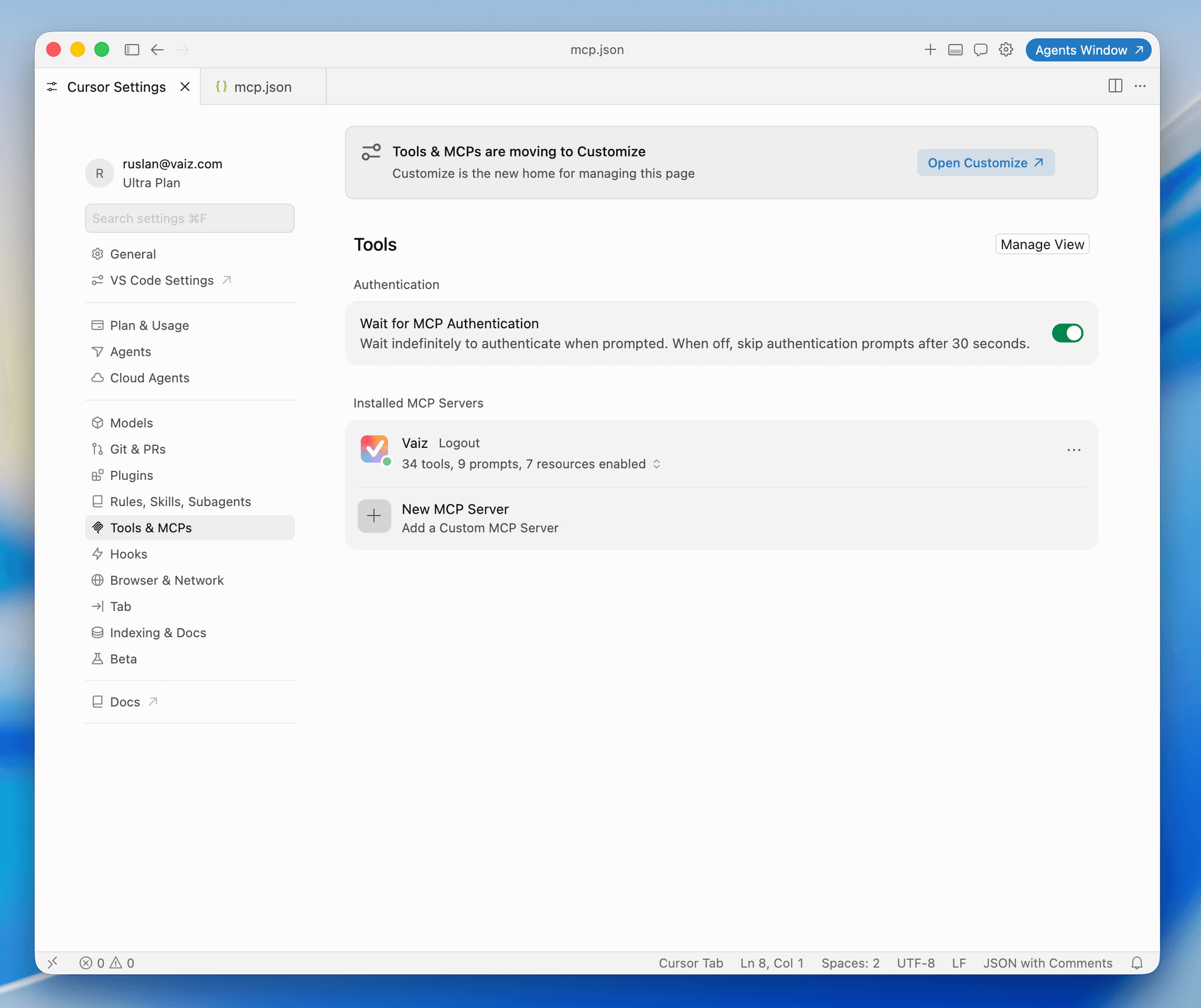
In Cursor, open Cursor Settings (for example, via the command palette), then go to Tools & MCPs. Scroll to Installed MCP Servers and click “Add a Custom MCP Server”.
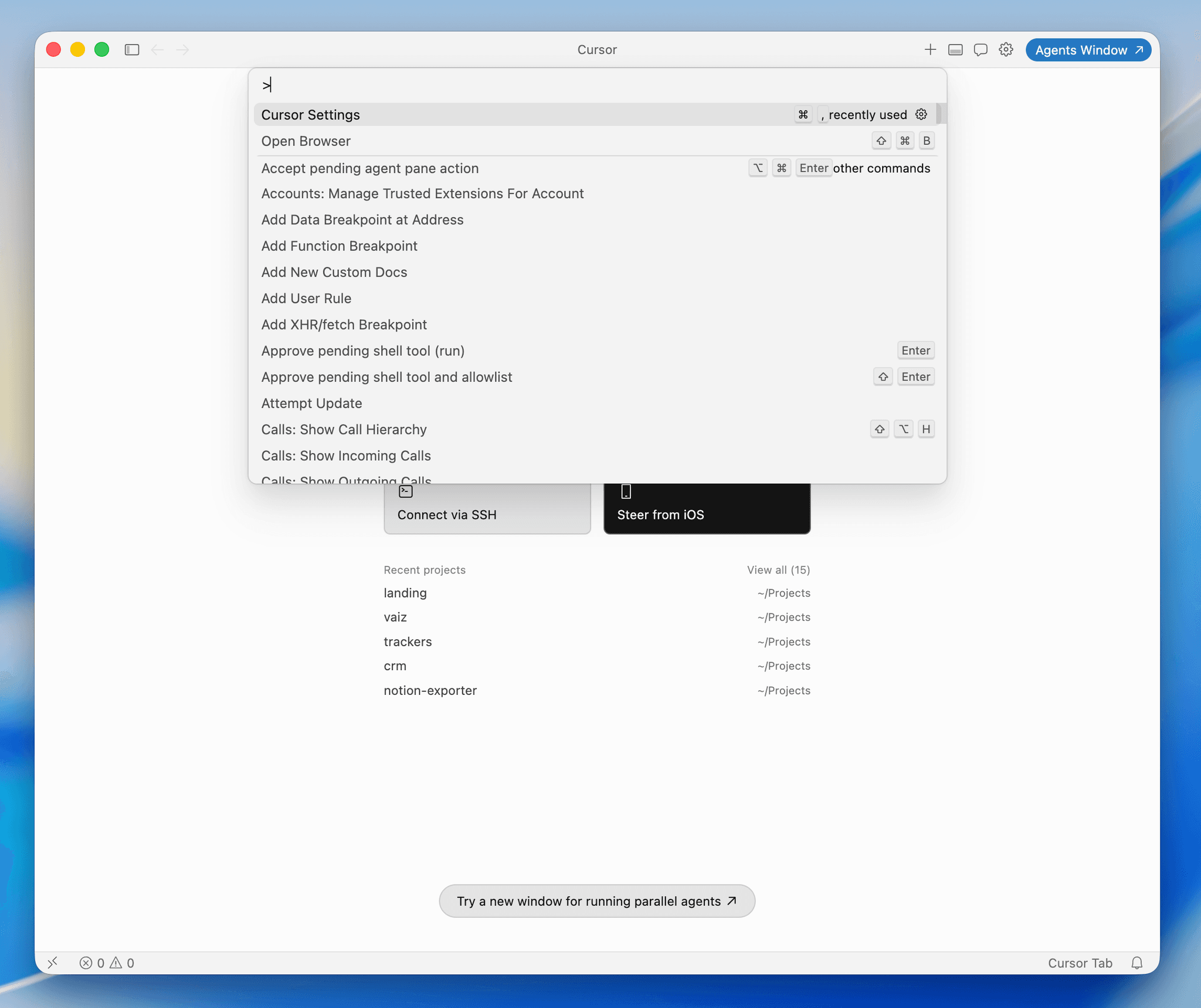
Step 2: Add the Vaiz server to your MCP configuration
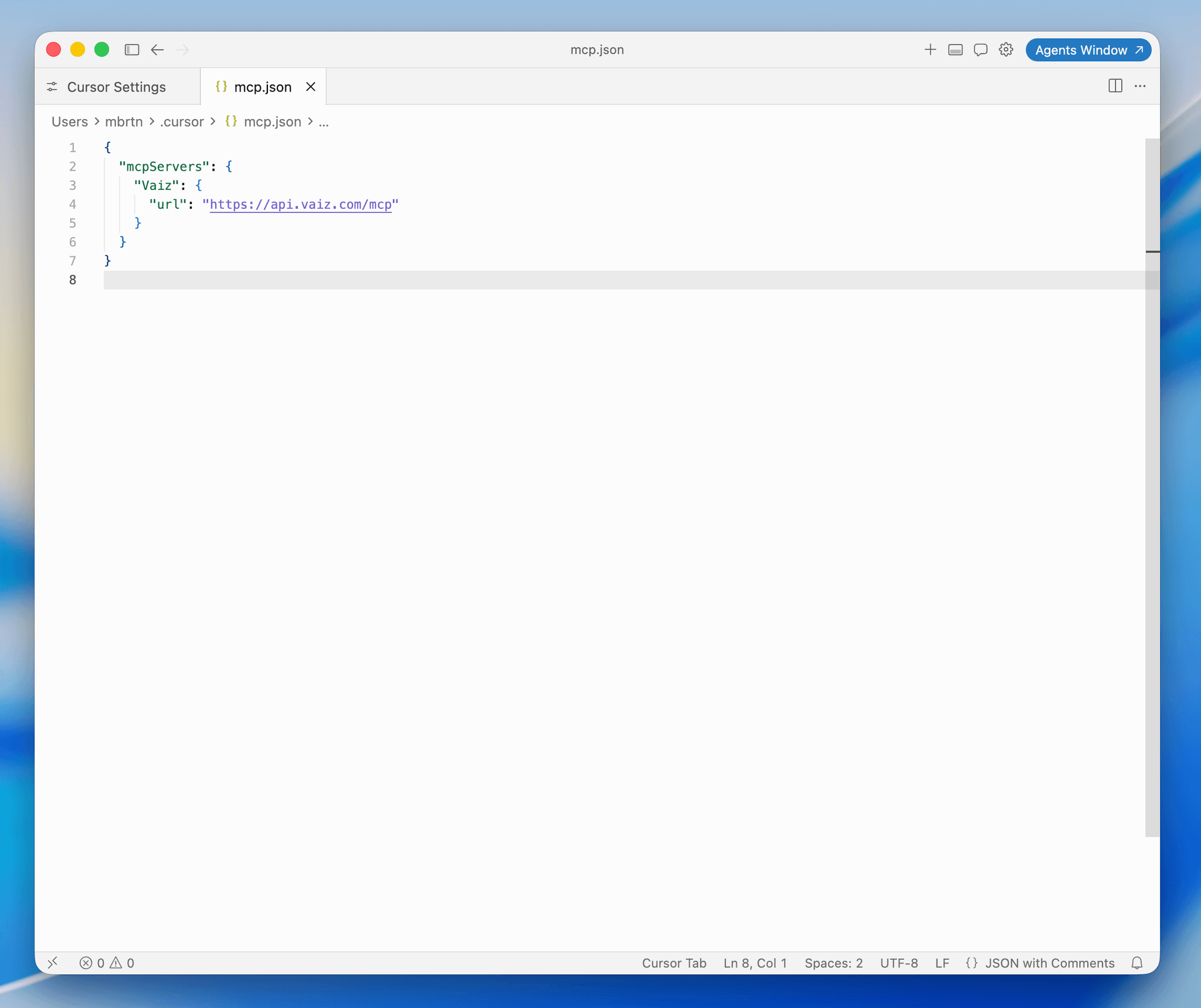
Cursor stores MCP server configurations in the file ~/.cursor/mcp.json. Vaiz runs as a remote MCP server, so all you need is its URL — just copy and paste the configuration below.
{
  "mcpServers": {
    "Vaiz": {
      "url": "https://api.vaiz.com/mcp"
    }
  }
}
Step 3: Authenticate and authorize access
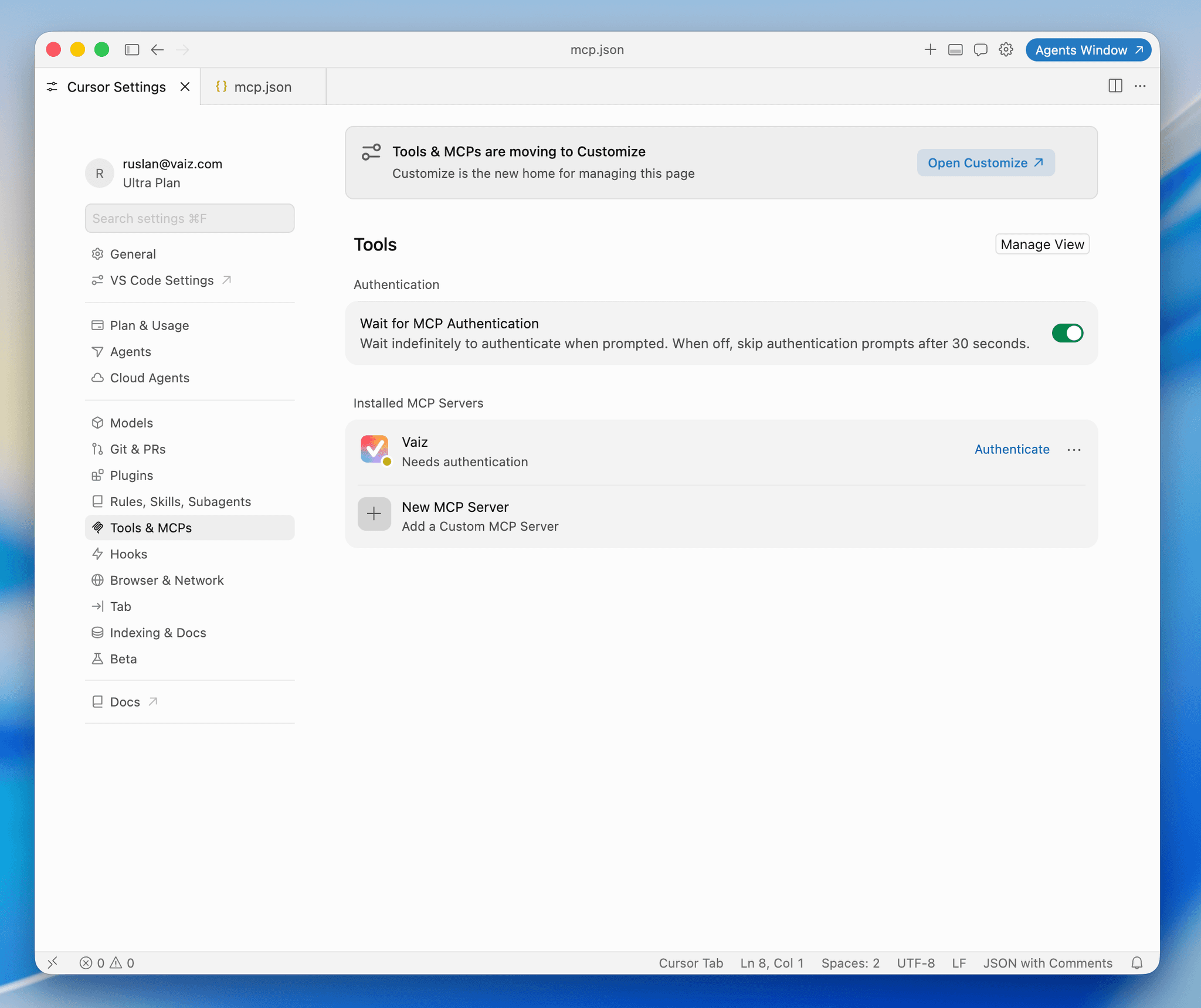
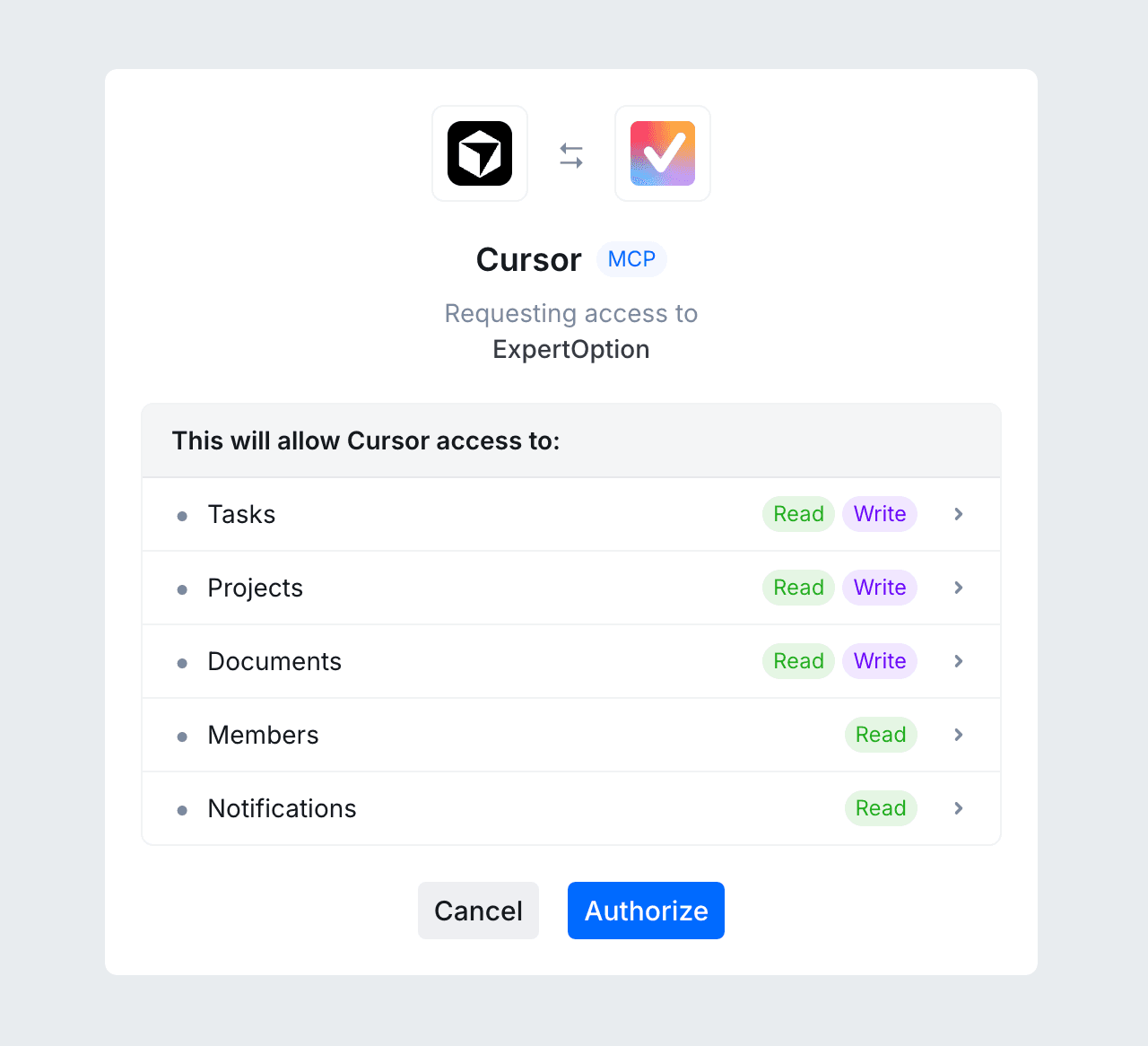
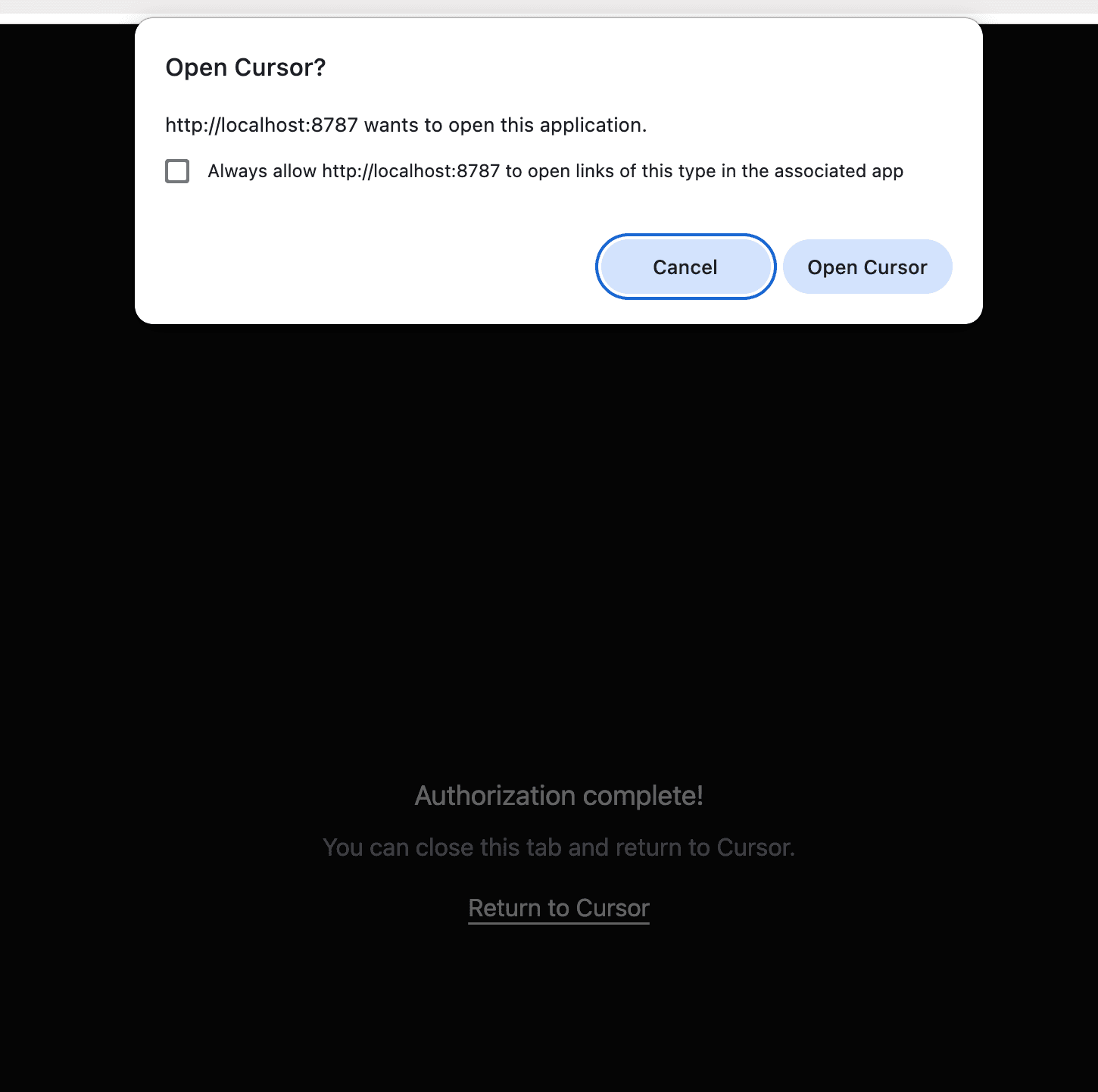
After saving the config file, return to Tools & MCPs — Vaiz appears under Installed MCP Servers with the “Needs authentication” status. Click “Authenticate”: your browser opens the Vaiz authorization page. Review the requested access and click “Authorize”. When you see “Authorization complete”, return to Cursor — Vaiz is now connected with its tools enabled.
Step 4: Start a new chat and use Vaiz tools
Open a new chat and send a request that relies on your Vaiz data. For example: “Let’s see how to solve task DEMO-32”. Cursor will call the Vaiz MCP tools and display structured task information.
Step 5: Continue your workflow using Vaiz data
Cursor can now generate follow-up tasks, code, plans, and deliverables using your workspace context. Your Vaiz MCP integration is ready.
Connect Vaiz to Claude
Bring your Vaiz workspace into Claude for planning, summaries, and project work. The same connector works in Claude Desktop, on claude.ai, and in the Claude mobile apps.
Step 1: Open settings in Claude
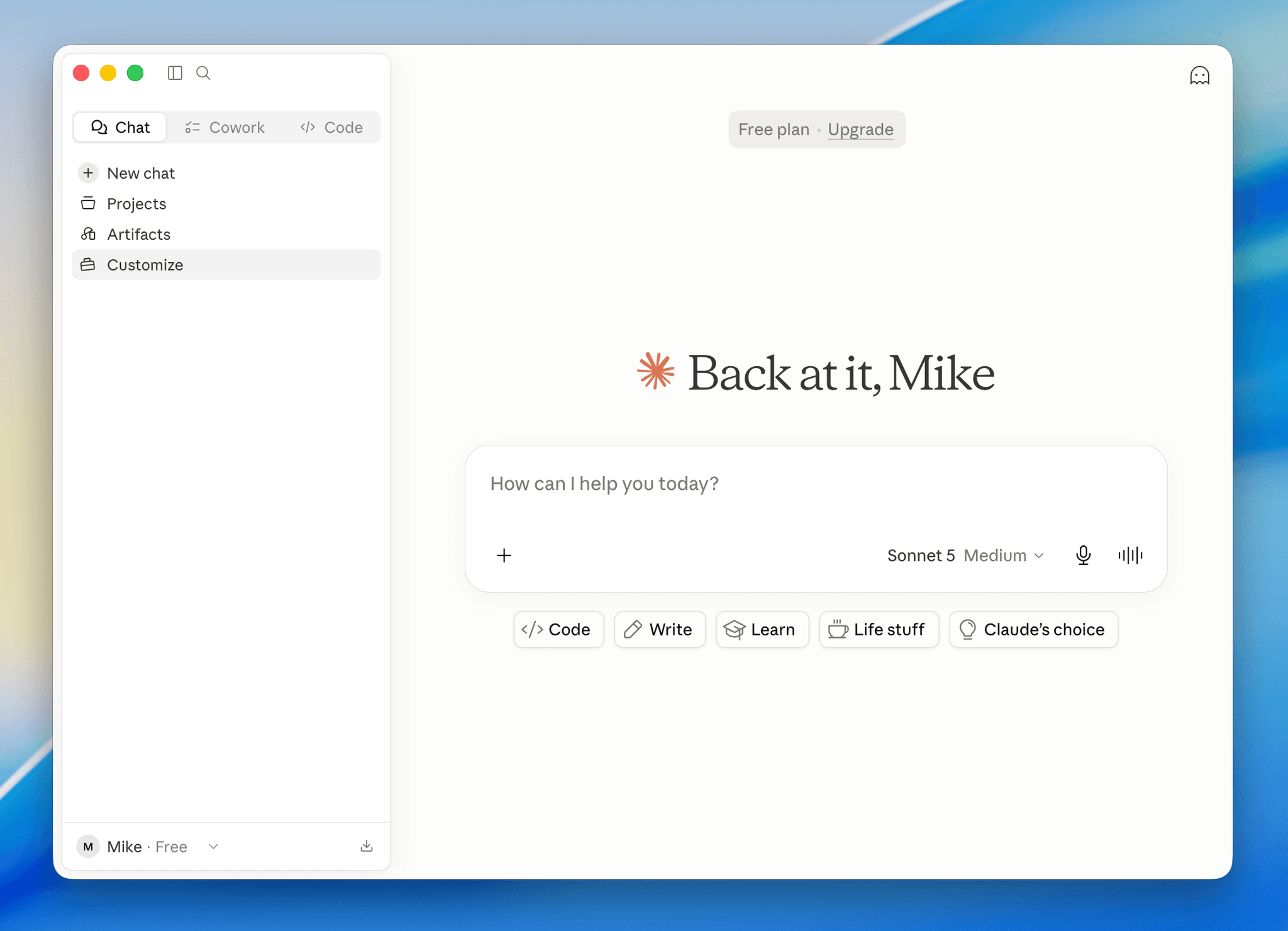
Open Claude Desktop and click Customize in the left sidebar.
Step 2: Add a custom connector
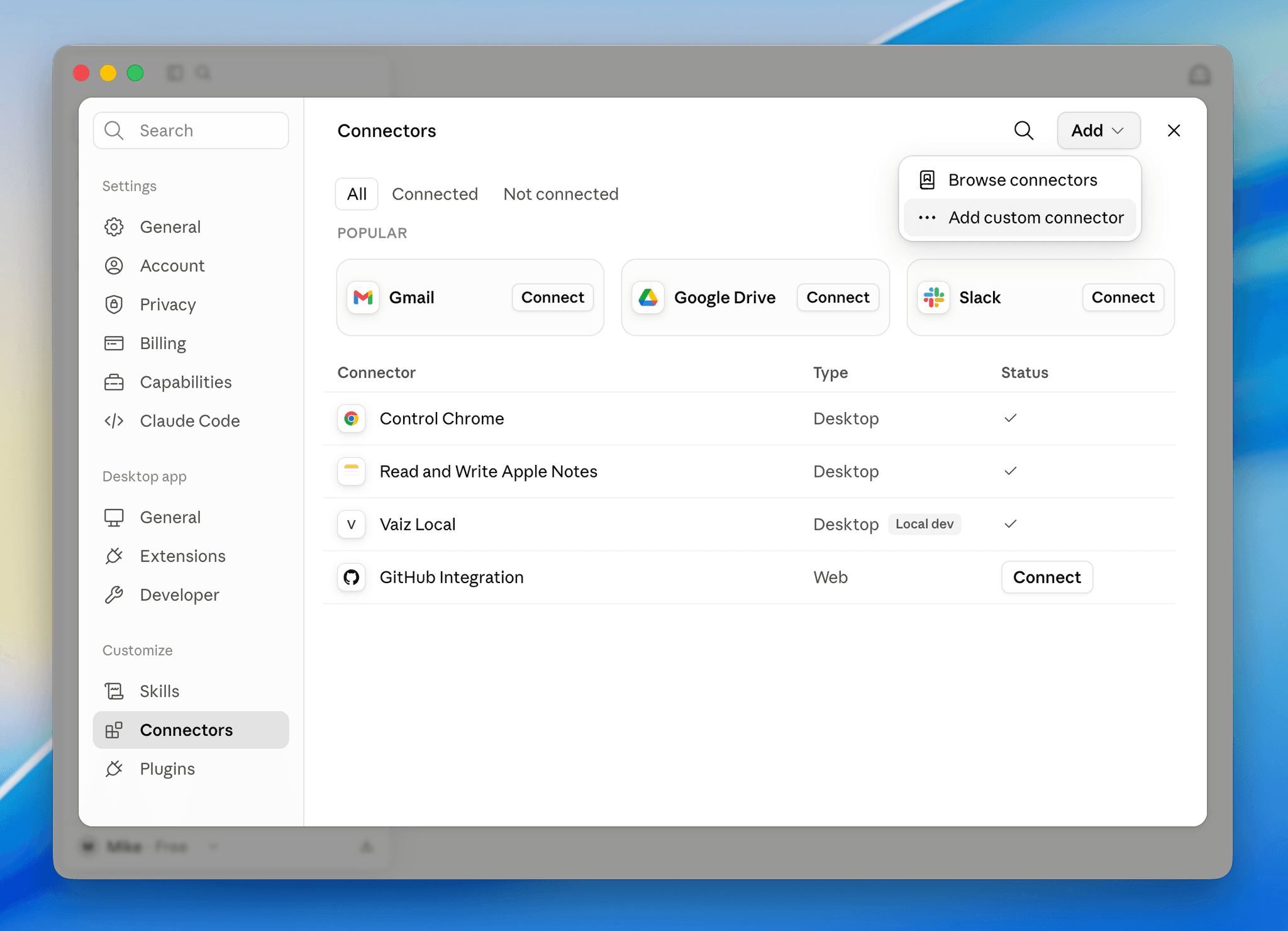
Go to the Connectors section, click “Add” in the top right corner, and select “Add custom connector”.
Step 3: Enter the Vaiz server details
In the dialog, enter “Vaiz” as the name, paste the server URL below, and click “Add”.
https://api.vaiz.com/mcp
Step 4: Connect your account
Vaiz now appears in your connectors list. Open it and click “Connect”. Claude will open the Vaiz authorization page in your browser.
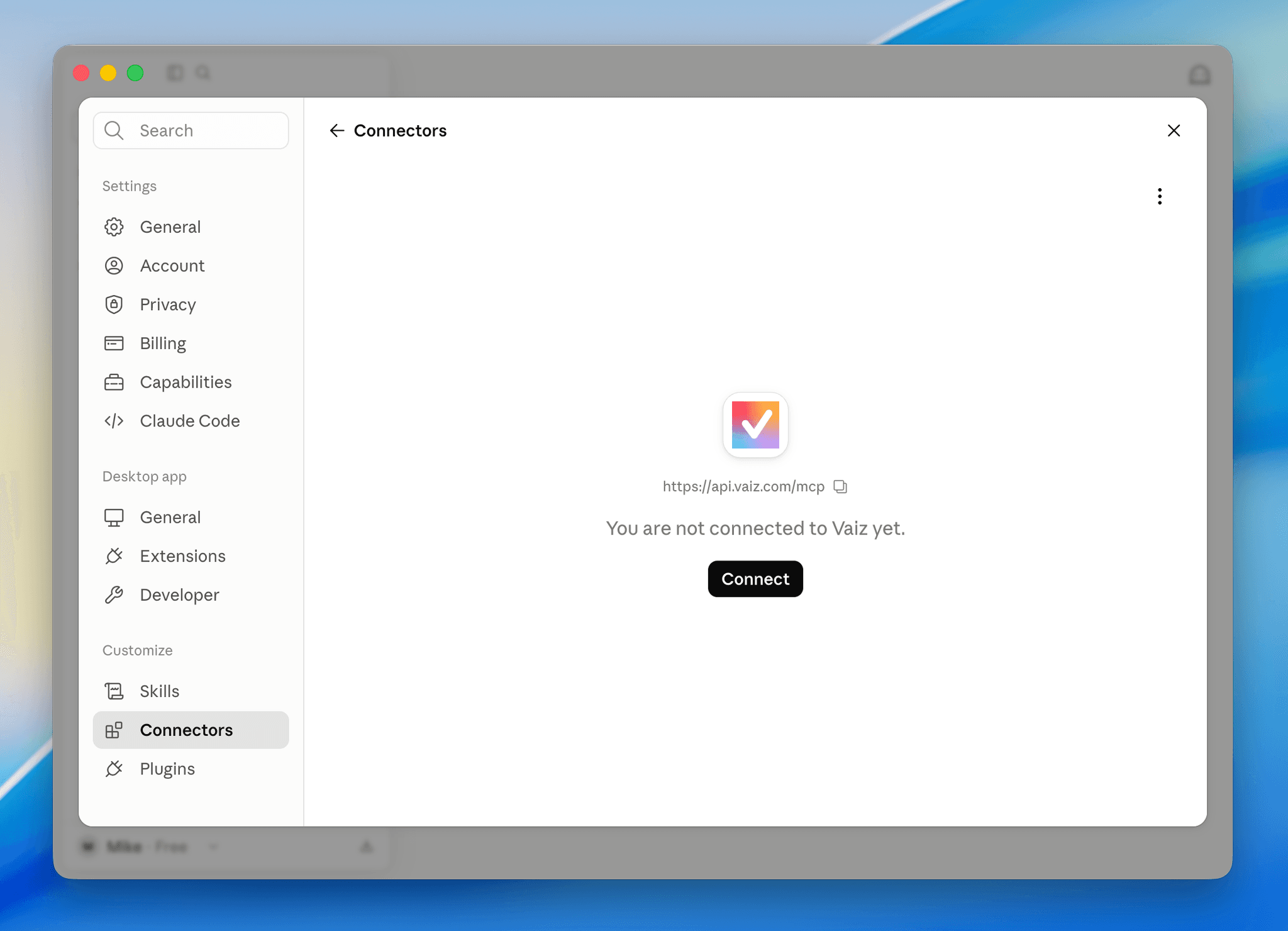
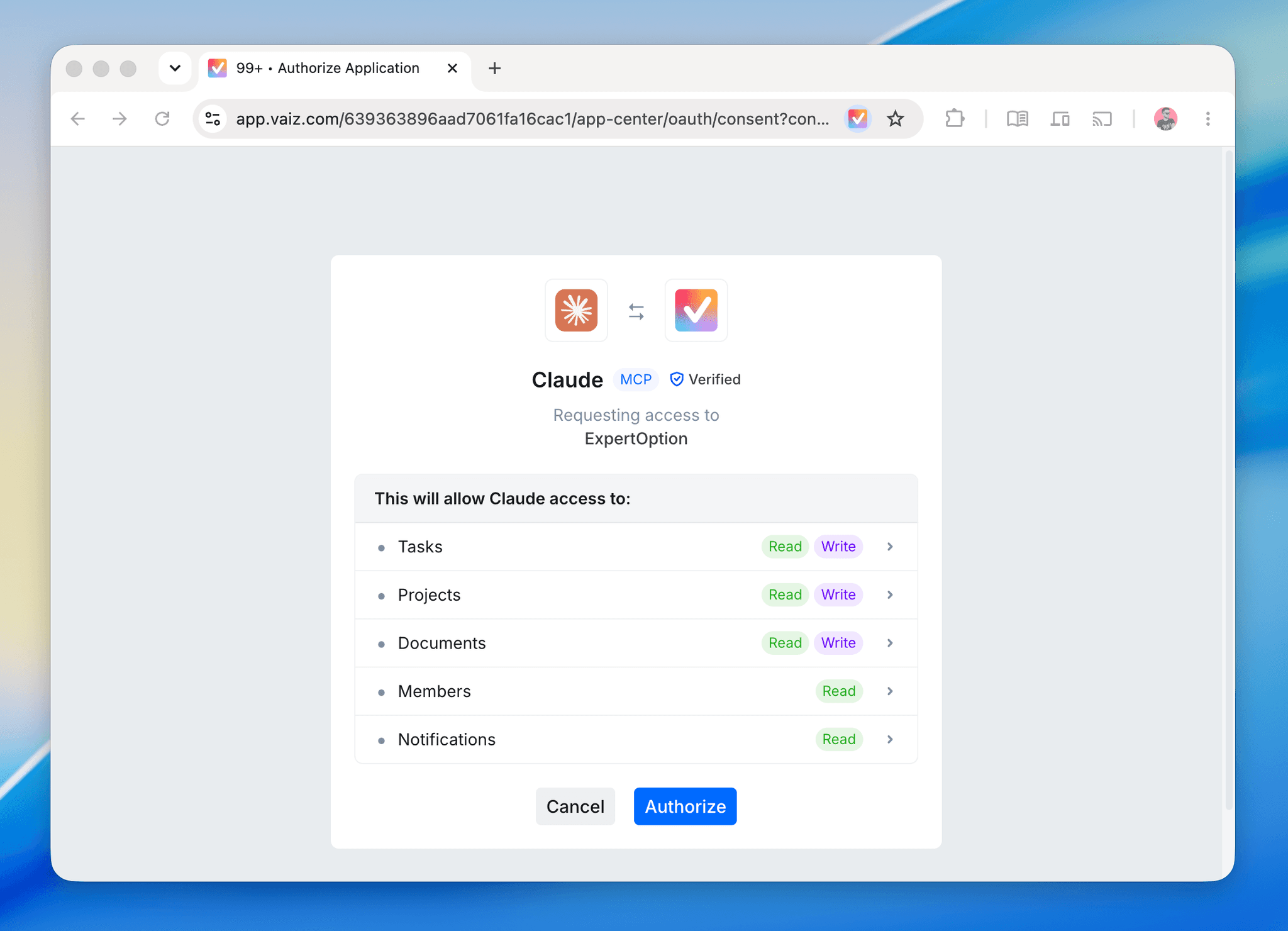
Step 5: Authorize Claude in Vaiz
The authorization page shows which space Claude is requesting access to and exactly what it will be able to do: read and write tasks, projects, and documents, and read members and notifications. Review the permissions and click “Authorize”.
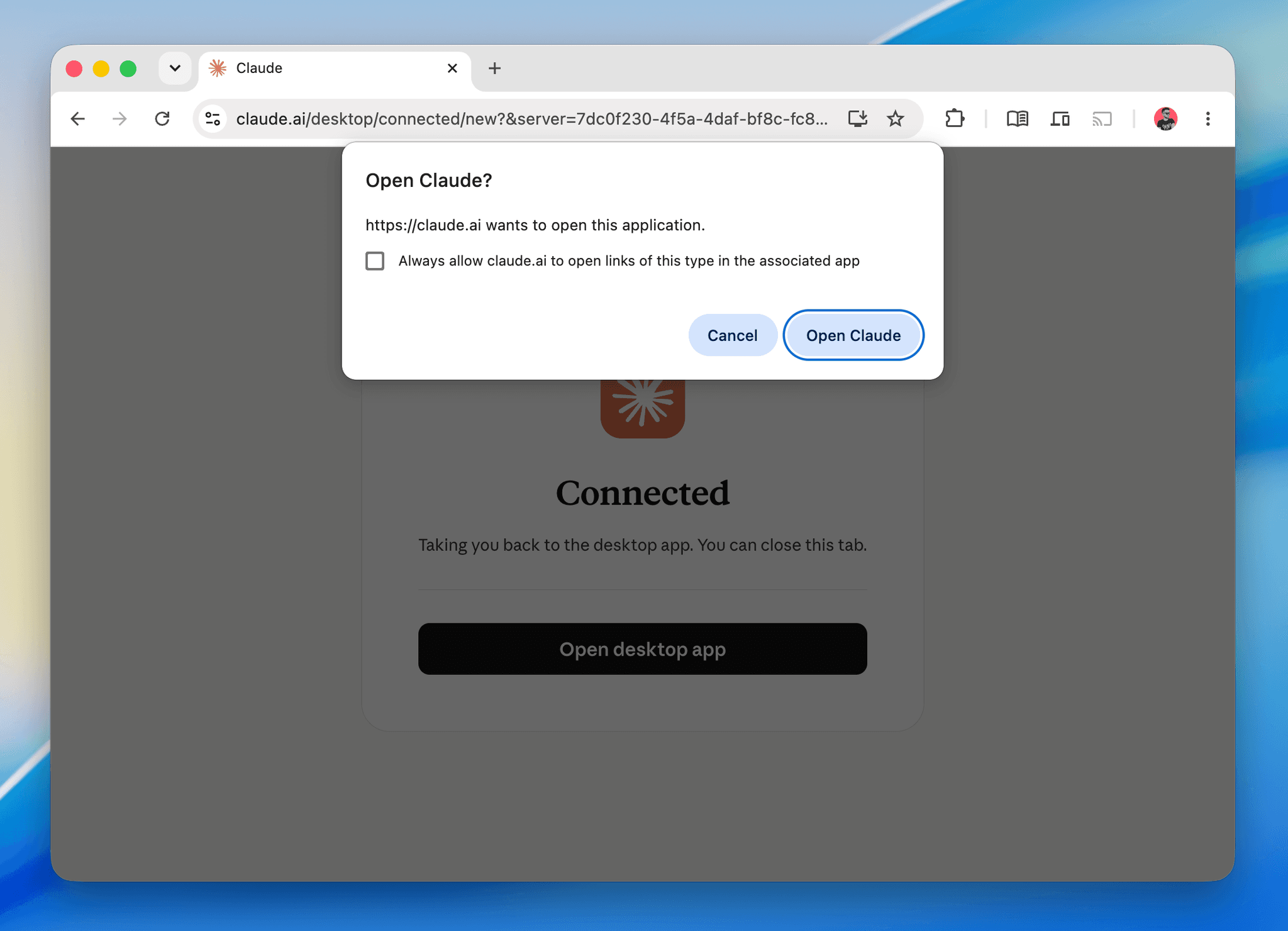
Step 6: Return to Claude
Once authorized, click “Open Claude” in the browser prompt to return to the desktop app. The connection is now active, and you can ask Claude about your tasks right away.
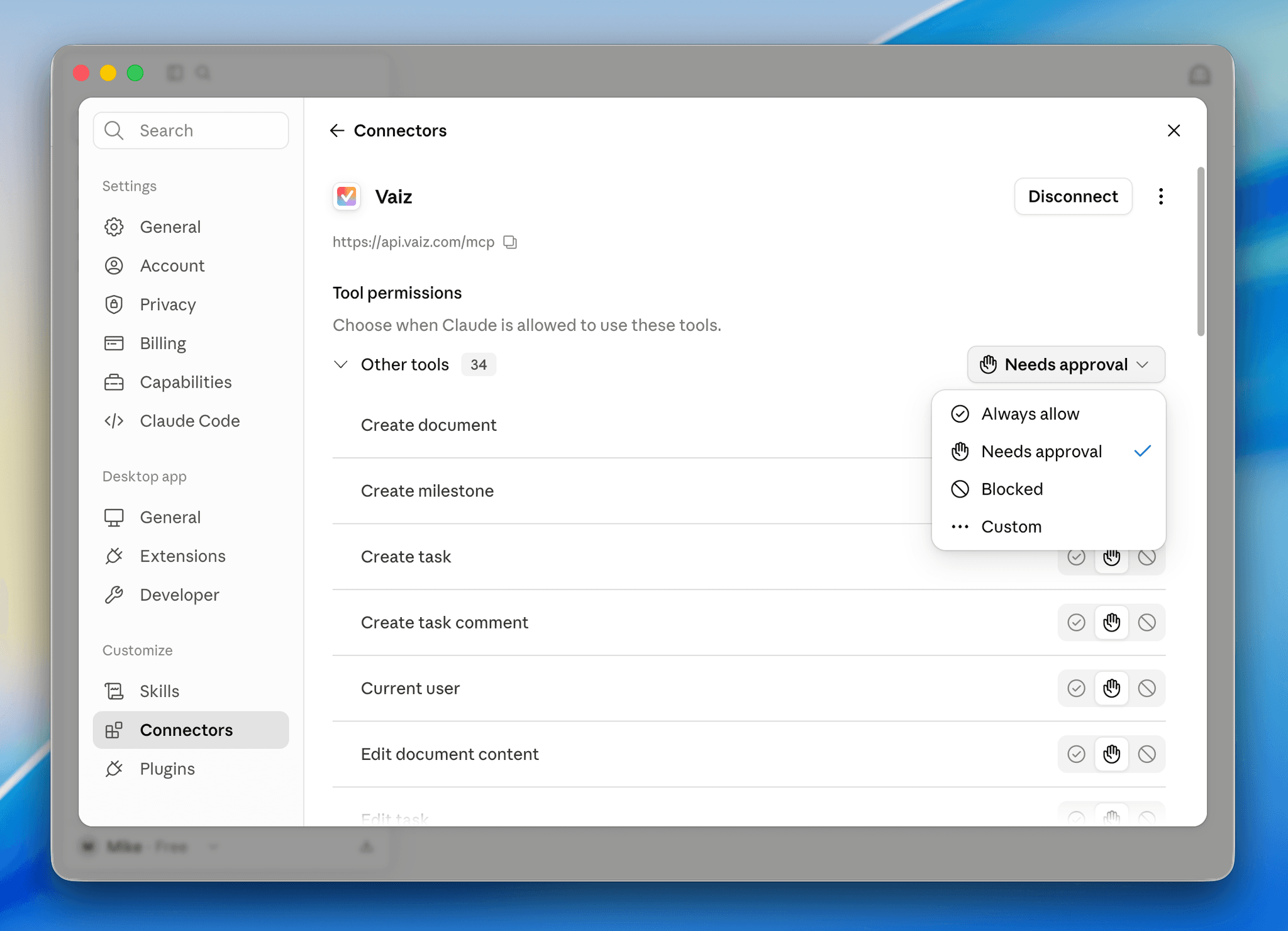
Step 7: Fine-tune tool permissions (optional)
By default, Claude asks for your approval before using Vaiz tools. You can adjust this per tool in the connector settings: set read-only tools like search to “Always allow”, keep write actions like creating tasks on “Needs approval”, or block specific tools entirely.
Connect Vaiz to Claude Code
Let Claude Code read project context and manage Vaiz work without leaving your terminal.
Step 1: Add the Vaiz server
Open your terminal and run the command below. Claude Code registers Vaiz as an HTTP MCP server in your local config — you’ll see “Added HTTP MCP server vaiz” in the output.
claude mcp add --transport http vaiz https://api.vaiz.com/mcp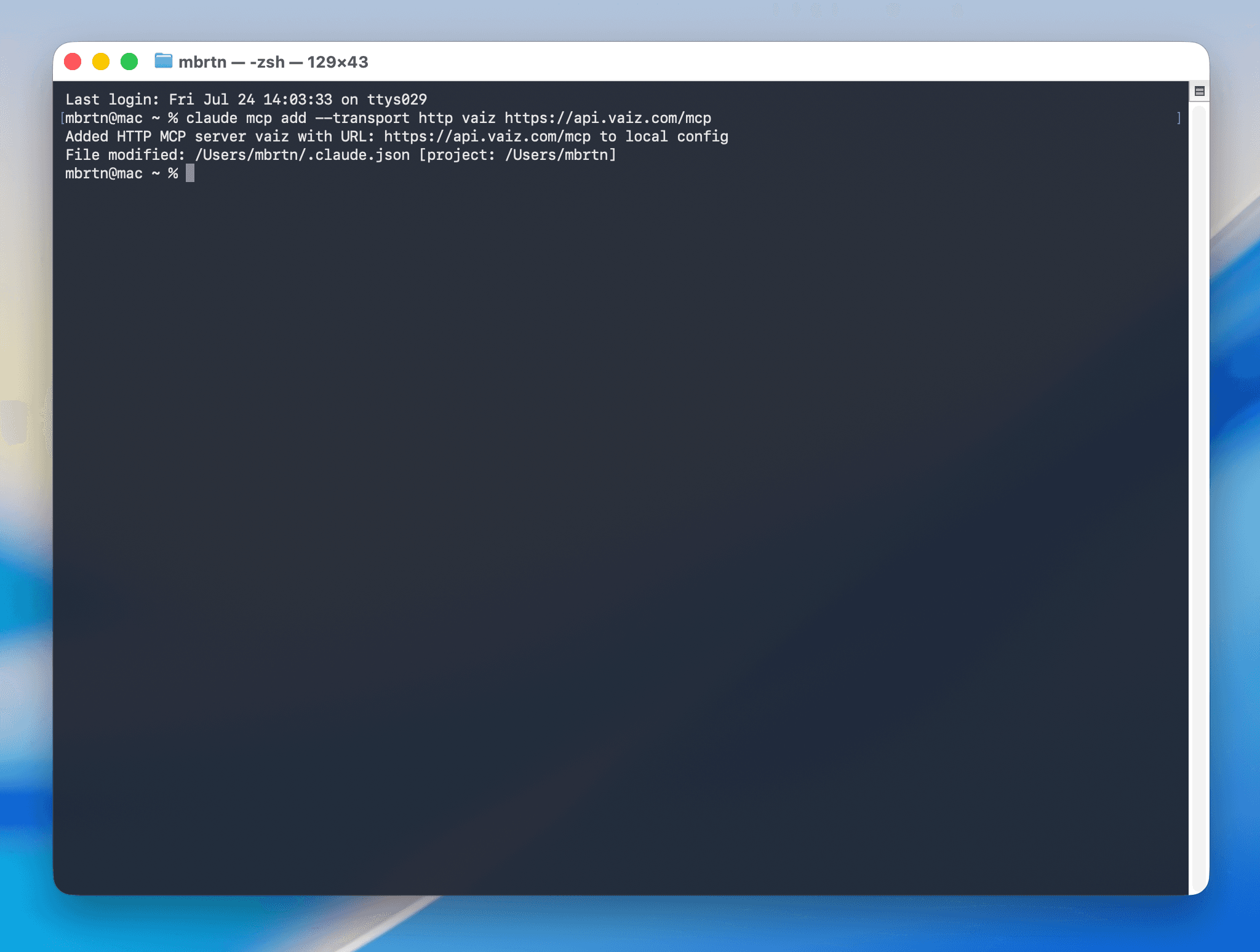
Step 2: Enable the server and authenticate
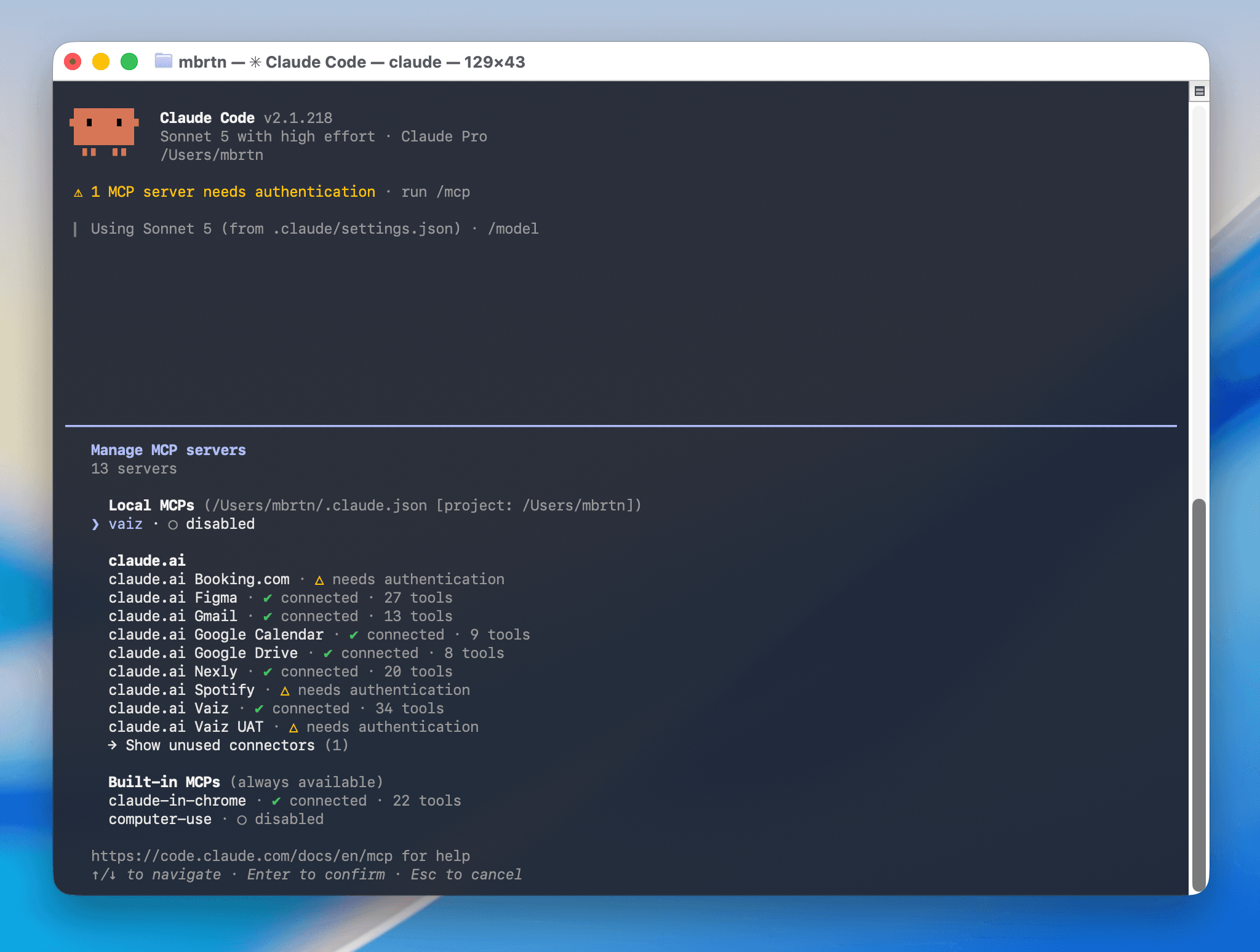
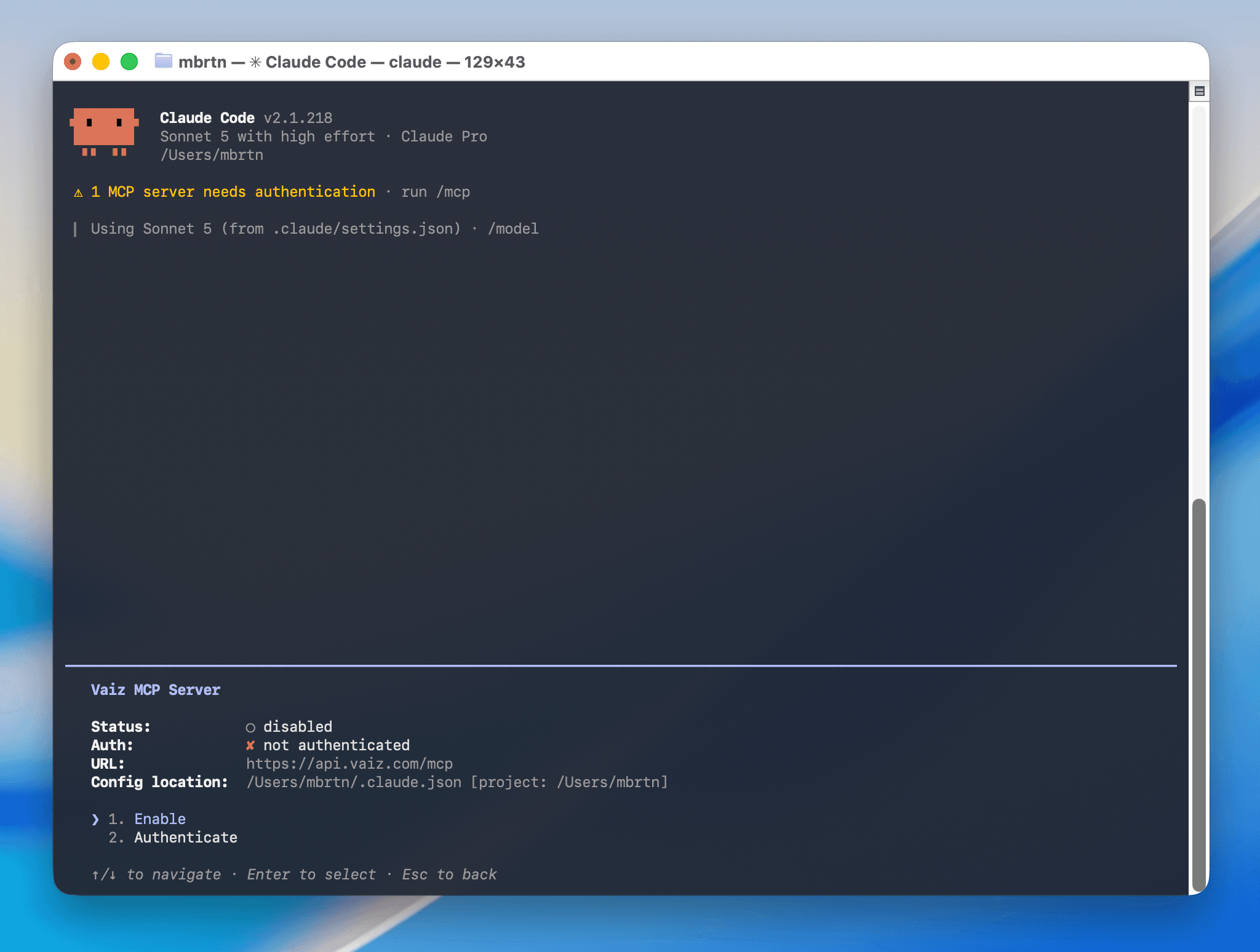
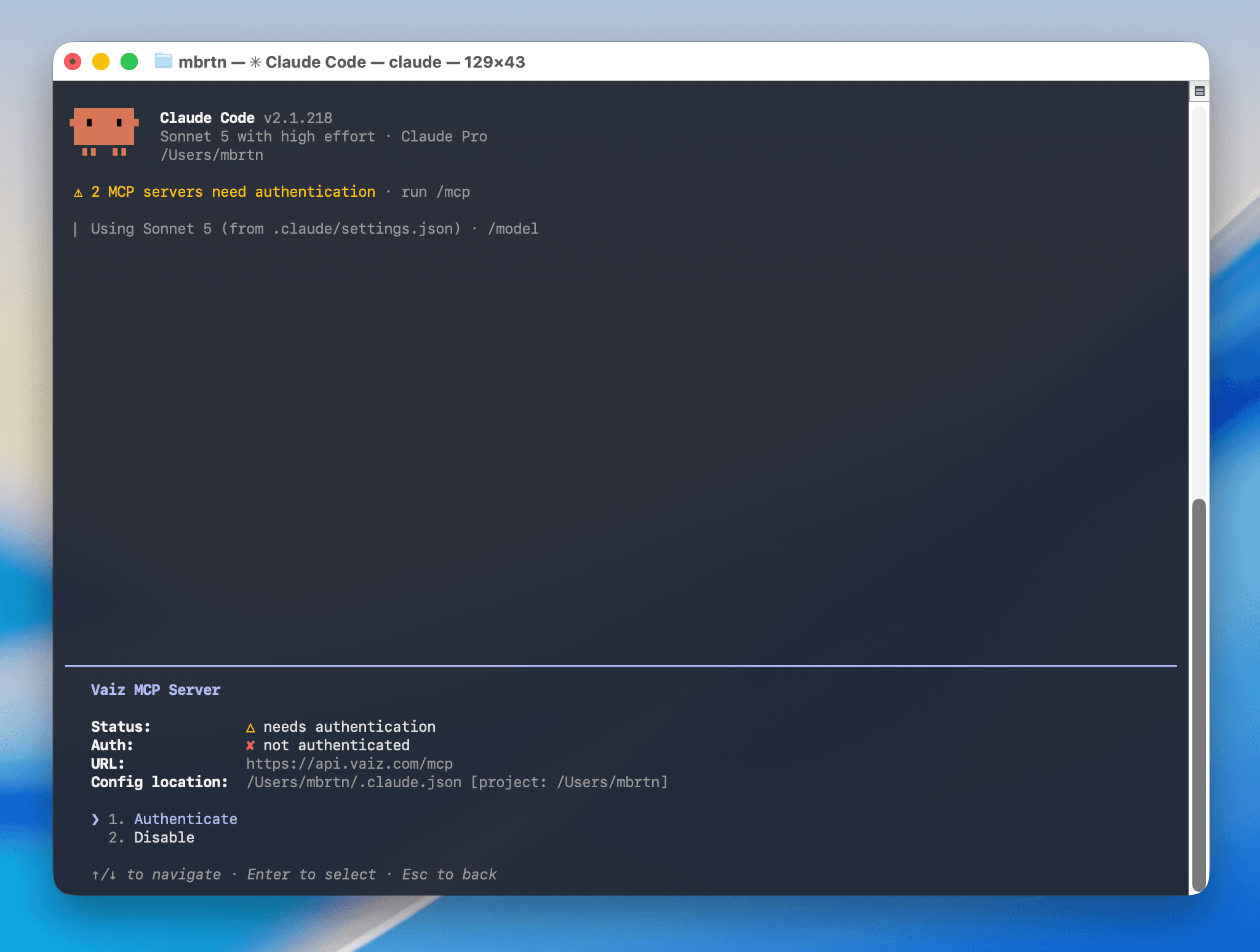
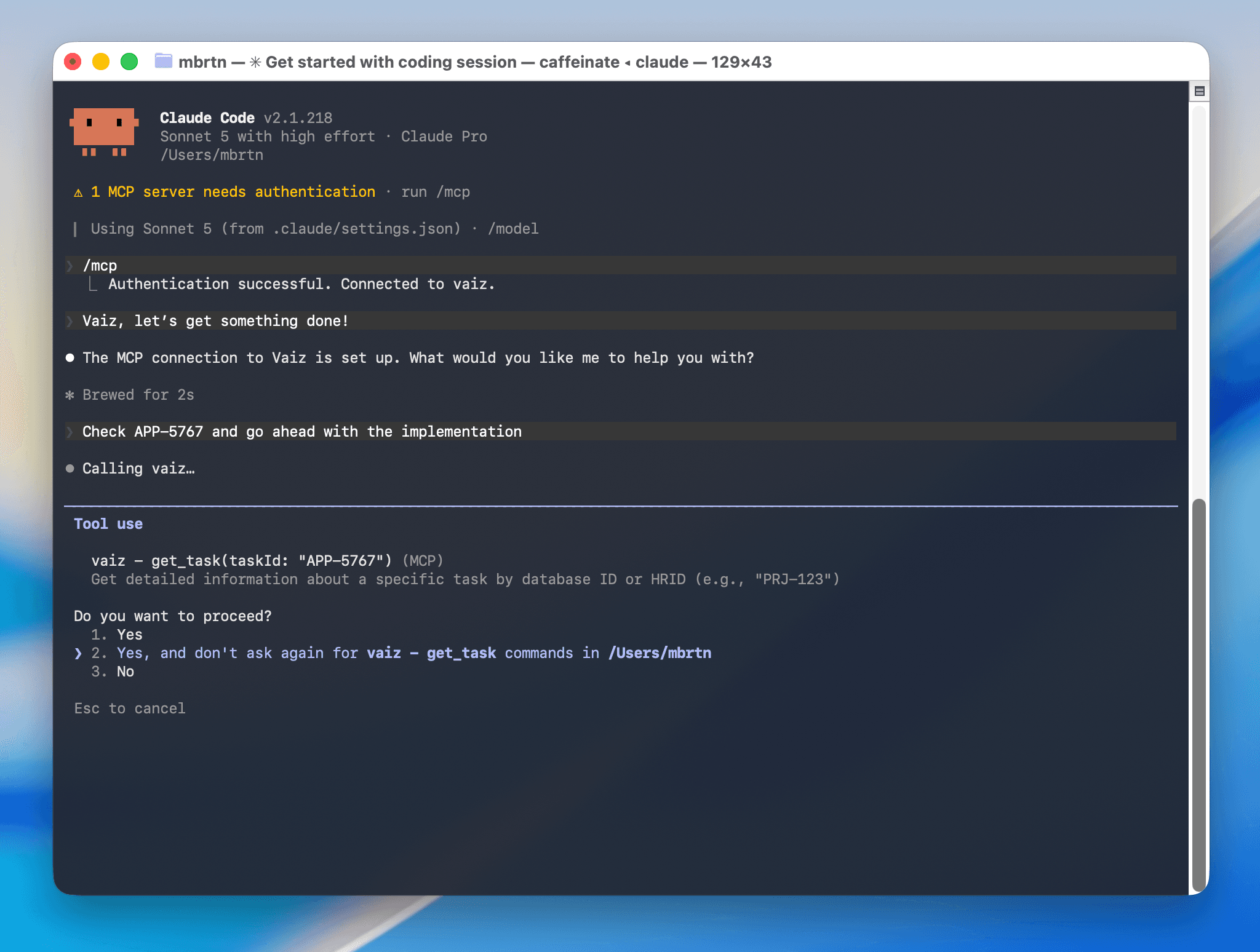
Start Claude Code and run the /mcp command. Select vaiz in the server list, choose “Enable”, then choose “Authenticate”.
Step 3: Authorize access in the browser
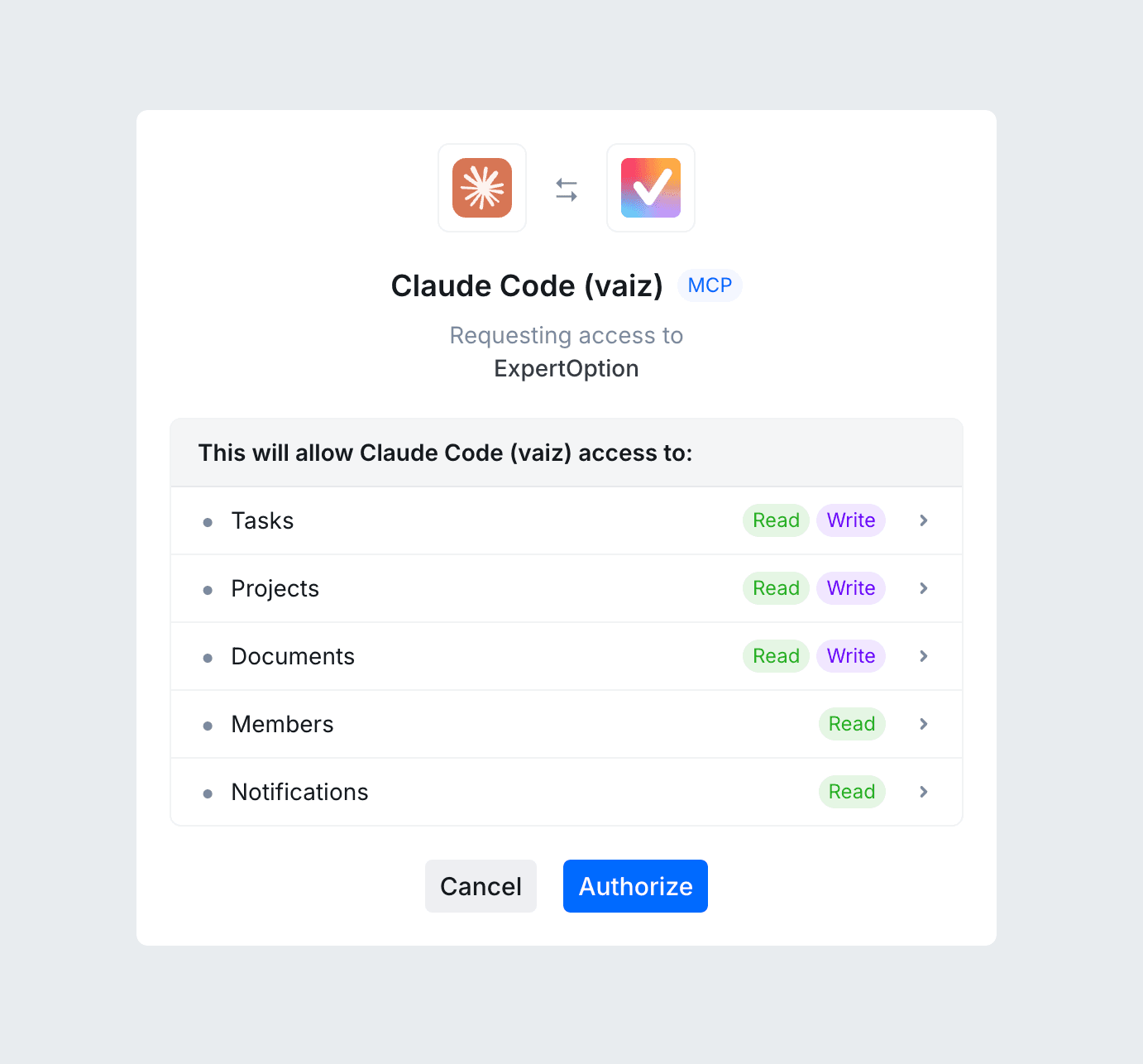
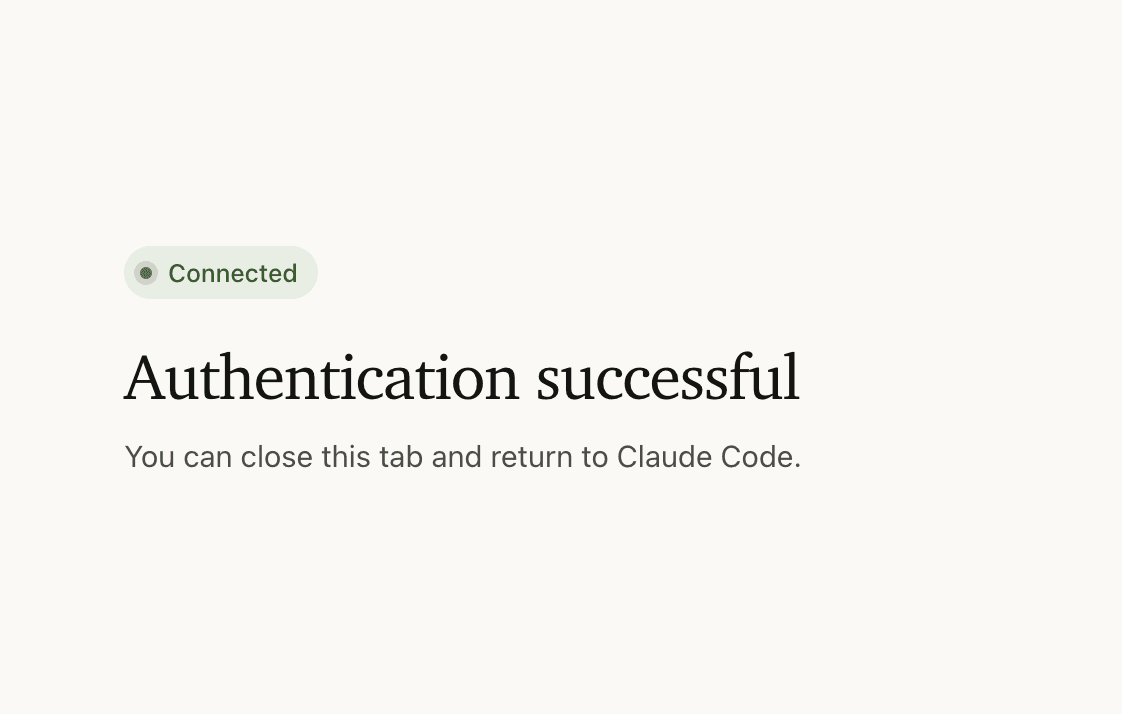
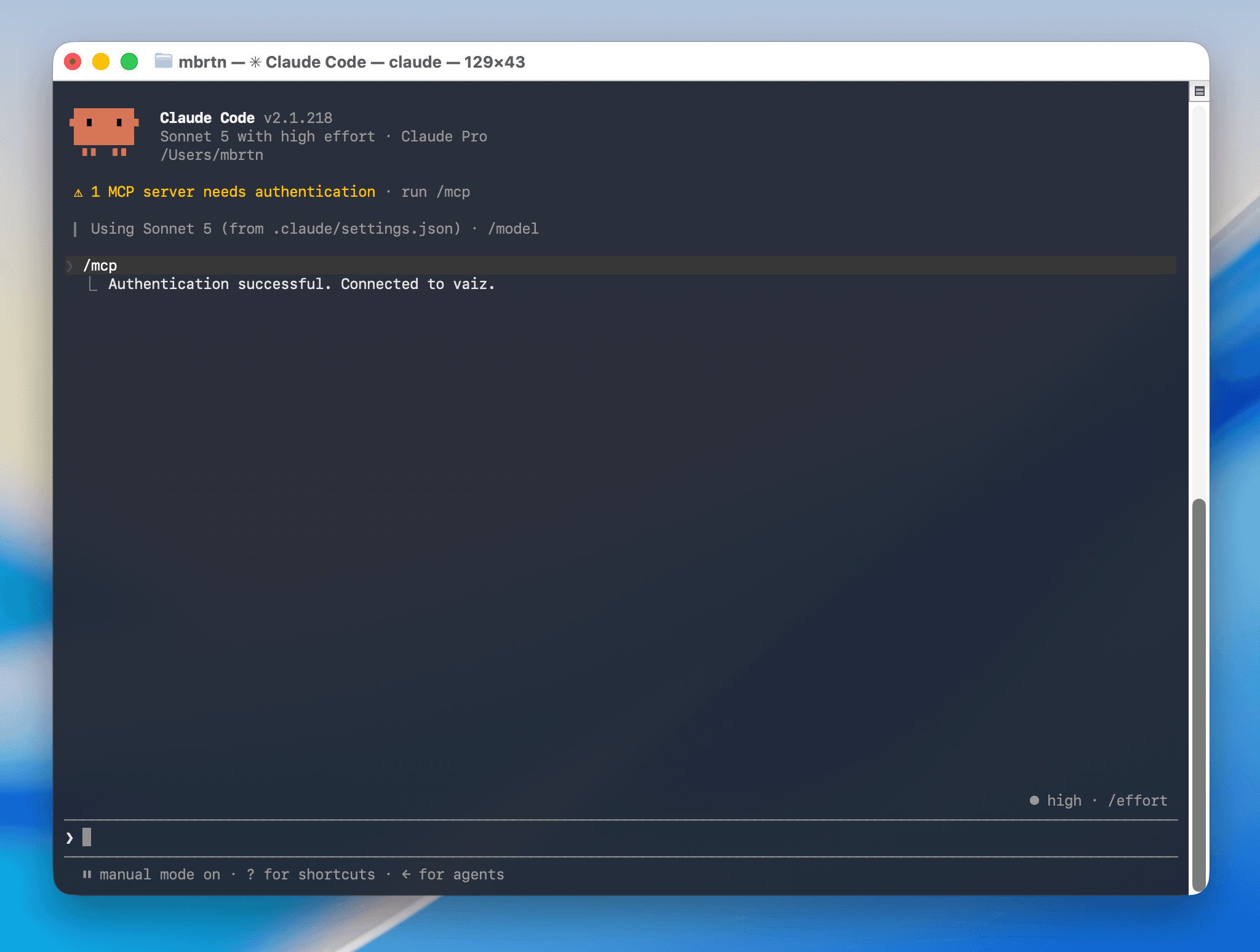
Your browser opens the Vaiz authorization page. Review the requested access and click “Authorize”. When you see “Authentication successful”, close the tab and return to Claude Code — /mcp now shows vaiz as connected.
Step 4: Work with your Vaiz tasks
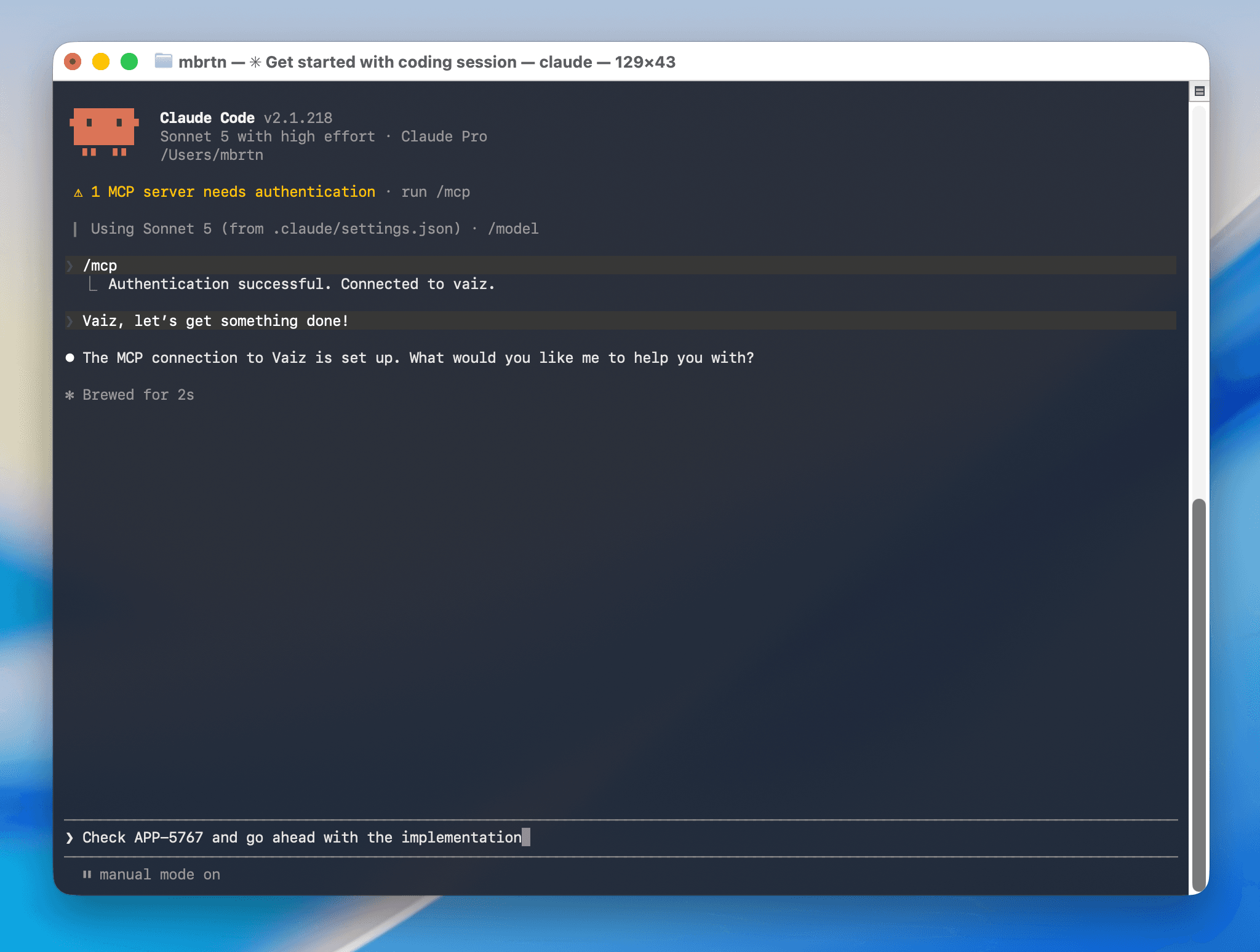
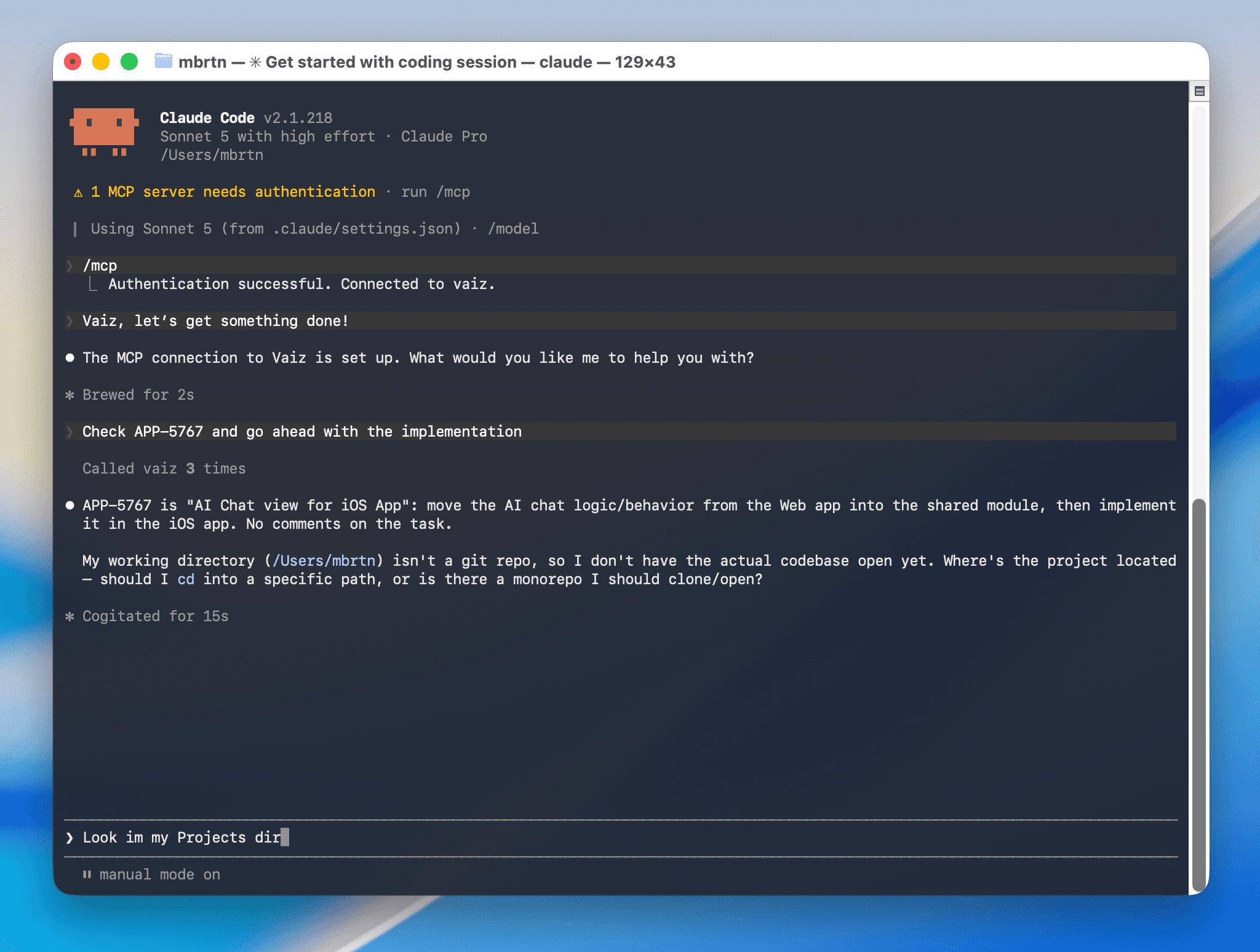
Ask Claude Code something that relies on your workspace, for example: “Check APP-5767 and go ahead with the implementation”. Approve the tool permission prompt, and Claude Code will read the task and start working with your real project data.
Connect Vaiz to ChatGPT Codex
Give Codex access to product requirements and tasks stored in your Vaiz workspace.
Step 1: Open MCP settings
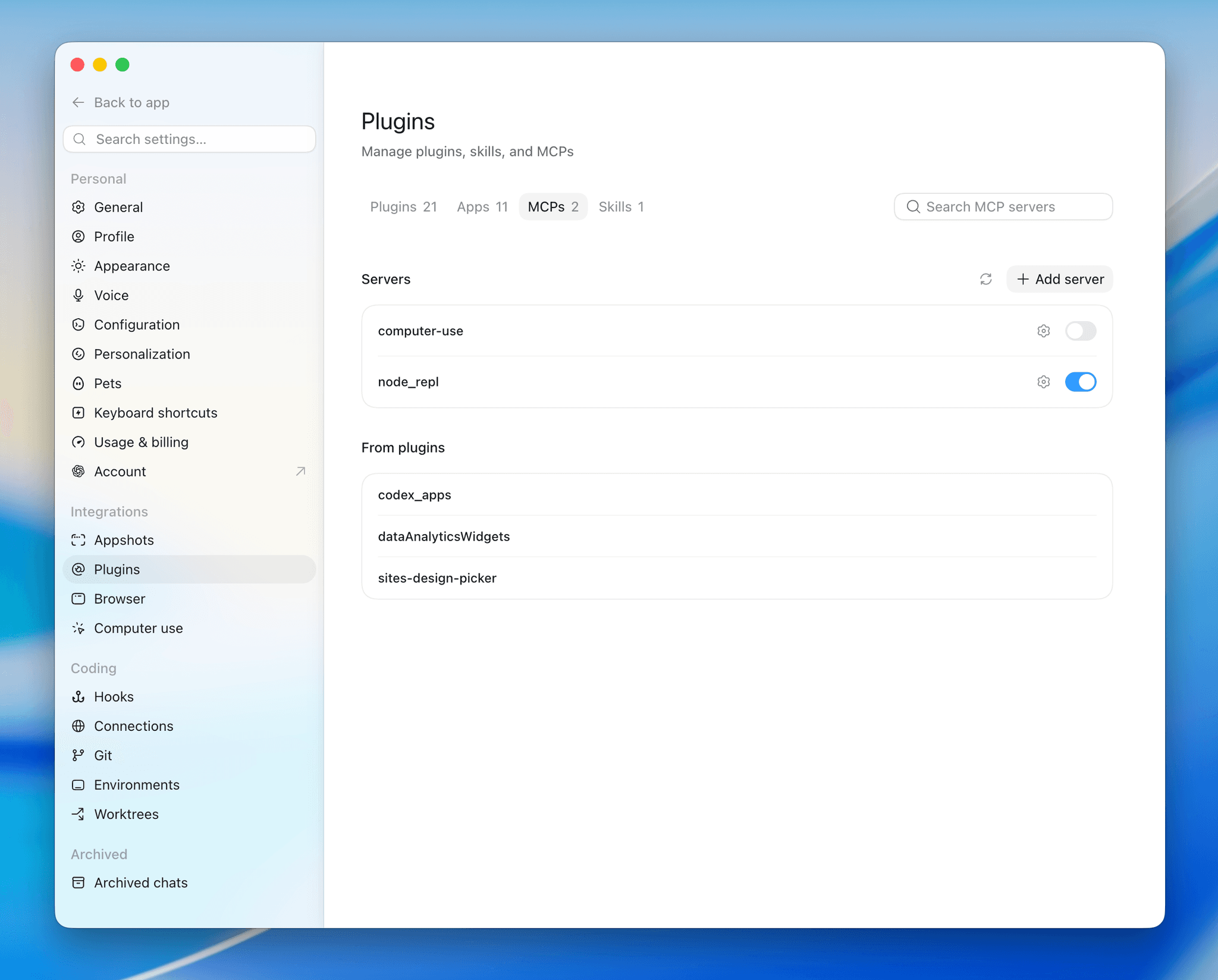
In the ChatGPT app, open Settings, select Plugins, then switch to the MCPs tab.
Step 2: Add a custom MCP server
Click “Add server” to open the “Connect to a custom MCP” form. Enter “Vaiz” as the name, select “Streamable HTTP” as the type, and paste the server URL below. Leave the token and header fields empty, then click “Save”.
https://api.vaiz.com/mcp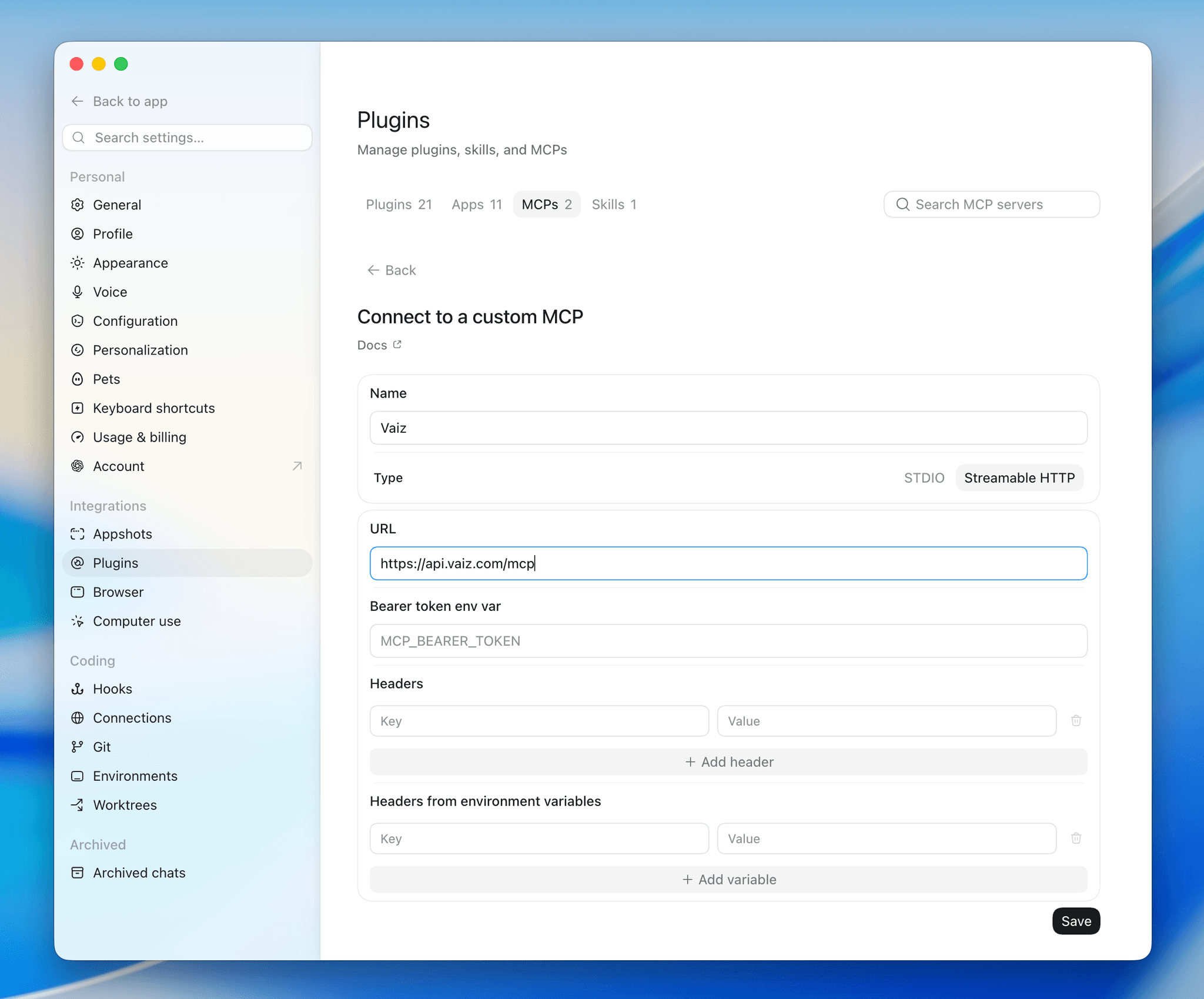
Step 3: Authorize access to your workspace
When prompted, sign in on the Vaiz authorization page, review the requested access, and click “Authorize”.
Step 4: Use Vaiz in your Codex sessions
Start a new Codex session and reference your real work, for example: “Read the specification in Vaiz and identify the files that need to change”. Codex will call the Vaiz MCP tools with your workspace context.
Conclusion
Once MCP is connected, Vaiz becomes directly accessible from tools like Cursor, Claude, Claude Code, and Codex. You can ask questions about your tasks, get summaries, and work with real project data without leaving your AI workspace. After a one-time authorization, the connection works securely in the background and is ready whenever you need it.